User Guide
Open your running service at its configured base_path — / unless you set one — or follow the Quickstart to start a local instance. Calendar combines an event editor, calendar views, entity assignments, and ICS tools in one interface.
Find Your Events
Use Month, Week, Day, or Year to change the view. The navigation arrows move through the selected view; Today returns to the current date. Select a date in the calendar or mini-calendar to see its agenda.
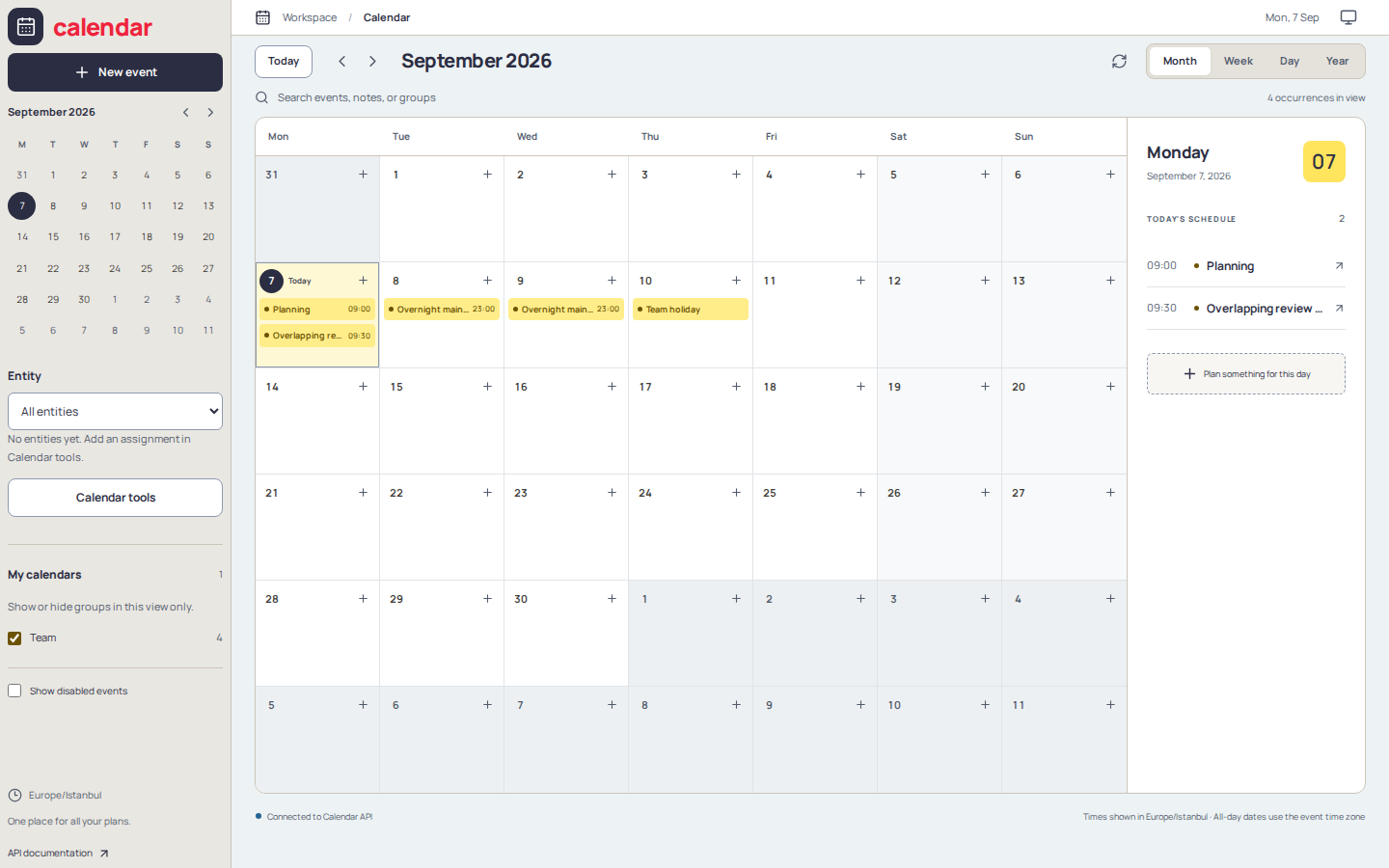
Week and day views place timed events on a time grid, with all-day events above it. Select an event in the calendar or agenda to open its editor.
Move an event
With a mouse, drag an event to another date in Month, or to another time/day in Week and Day. The time grid snaps to 30-minute steps and preserves the event's duration. Month moves retain the start time; all-day moves retain their calendar-day length. A preview shows the destination before you release. Press Escape or release outside the calendar to cancel.
Moving a recurring event changes only that occurrence. Saving is automatic; if the server rejects the move, the original event stays in place and a message explains the error. Imported custom time zones cannot be moved in the browser. On touch devices or with a keyboard, open the event editor to change its dates.
Subscribe to an external calendar
In the sidebar, choose Subscribed calendars → Add subscription, enter a name and a published ICS / webcal URL, then select Subscribe. For Outlook or Google Calendar, use the provider's ICS link rather than its calendar web page. The calendar service must be able to reach the public feed URL.
Subscribed events appear alongside local events in all views, independently of the entity filter, and can be searched. They are read-only: make changes in the source calendar. Toggle a subscription's checkbox to hide/show it, use Refresh feeds to fetch updates immediately, or × to unsubscribe.
The UI fetches feeds when you open it or change the displayed range, and every five minutes while open. Errors appear next to the subscription. Subscription names and URLs are stored in this browser's local storage, not synced between devices; the feed events are not imported into the local event database.
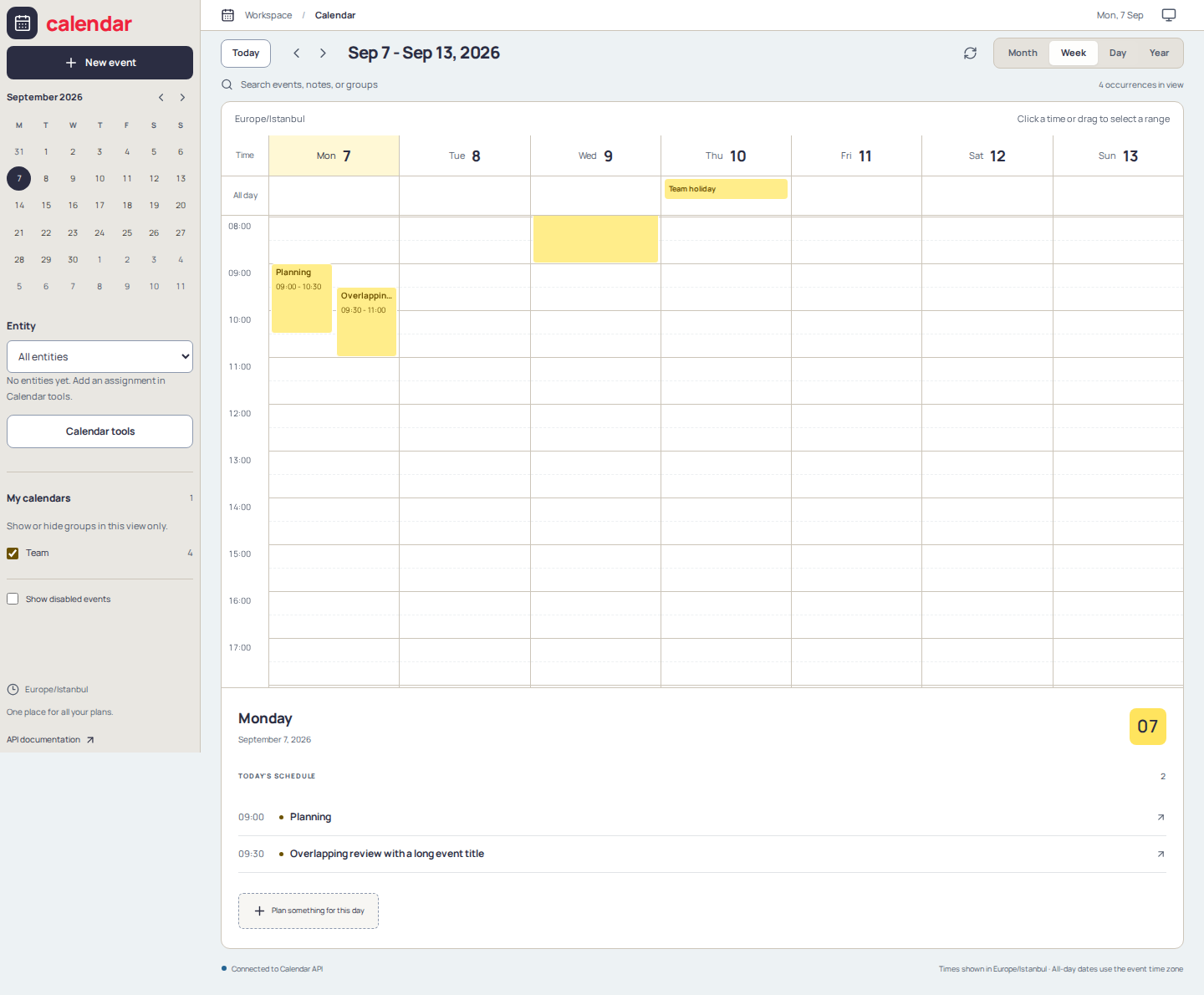
- Search events matches event names, notes, and groups in the loaded calendar range.
- My calendars toggles group visibility without changing stored events.
- Show disabled events reveals disabled events in the UI; it does not enable them or include them in ICS exports.
- Entity requests events assigned to that entity from the server. Search and group visibility are local view controls, not additional access restrictions.
- Refresh calendar reloads data after changes made elsewhere.
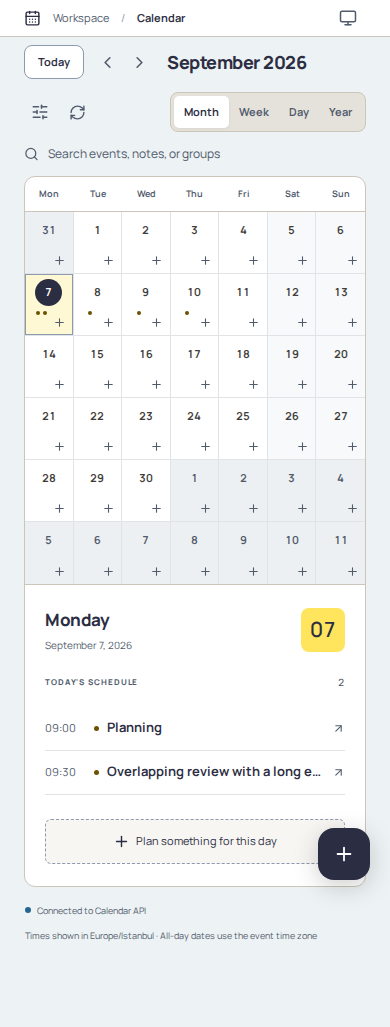
On mobile, use Toggle calendar filters to open navigation and filters. Month cells show event dots; tap a date to read its agenda and use the create button to add an event.
Create and Edit Events
- Choose New event, a date's add button, or a time slot in week/day view. On desktop, dragging across dates or time slots can prefill a range.
- Enter an event name, choose an existing Calendar group or enter a new group name, and optionally add notes.
- Choose all-day or timed scheduling, set the start and end, and confirm the Time zone.
- Choose a Repeat preset if needed, then save. Use Additional settings for the disabled flag and optional Updated by audit label.
To change an event, select it and save your changes. For recurring events, check the edit scope first (see below). Deleting a series removes the whole stored event; cancelling one occurrence keeps the series. Disabling an event keeps it stored and editable while excluding it from ICS exports.
Dates and Time Zones
Timed events display in your browser's time zone; the editor uses the event's explicit time zone to interpret the entered date and time. All-day events retain their dates in the event's own zone instead of shifting with the browser zone.
The all-day editor's End date is inclusive: for a one-day event, use the same start and end date. The UI converts it to the following day's midnight for storage. The API and ICS use exclusive end timestamps. For example, an all-day event on September 7 ends at September 8, 00:00 in its event zone. A timed event ending at 10:00 does not occupy the next time slot beginning at 10:00.
Recurring Events
Repeat options include secondly, minutely, hourly (timed events only), daily, weekly, monthly, and yearly schedules, plus special holiday presets. Existing advanced RRULE/FUNC rules are retained when editing unless you replace the repeat selection. Occurrences are expanded by the server.
Choose Edit scope when opening a recurring occurrence:
- This occurrence changes only that instance. Cancel occurrence hides it without deleting the series. A moved occurrence remains tied to its original scheduled date.
- Entire series edits the master event. Existing overrides retain their own details. Deleting in this scope deletes the entire series.
- Reset this occurrence to series removes its override. In the series editor, expand Occurrence exceptions to reset overrides or Restore cancelled occurrences. The sidebar's Series exceptions also opens series with cancellations, even when no occurrences are visible.
Switching scope discards unsaved form edits. Reset/restore saves immediately and closes the editor without saving other form edits. If a save conflicts with another update, reload the event before retrying.
Series dates, timezone, and repeat rule are read-only while exceptions exist. Reset overrides before changing timing; imported EXDATE/RDATE exclusions and additions also lock series timing and must be managed through ICS or the API. The UI preserves them but has no EXDATE/RDATE authoring or removal controls.
Supported Scope
Only a single occurrence or the entire series can be edited; "this and future occurrences" (RANGE=THISANDFUTURE) is not supported. Zero-duration timed events are not supported. Calendar does not implement all of RFC 5545.
Imported DURATION is retained for details-only edits. A duration of P1D means one nominal calendar day, not necessarily 24 hours across daylight-saving changes; PT24H means exactly 24 hours. Changing timing replaces duration metadata with explicit start/end values. Leap second 60 is evaluated as 59, but the original lexical value is retained for export when timing is unchanged.
Custom ICS timezones are resolved by the server using a supported YEARLY observance-rule subset over years 1..9999. Events carrying imported timezone definitions have read-only timing controls and UTC fallback display, even when the timezone name is recognized: the imported rules may differ from browser rules. Use ICS or the API for those timing edits.
The occurrences API limits each request to 400 days and 20,000 results. Expansion also has a work budget, including for hourly, minutely, and secondly rules. Exceeding a limit reports an error rather than silently omitting events; a narrower range may help.
Groups and Entities
A group is a label on an event, such as Holidays or Team. It organizes the calendar's colors and visibility. An entity is a named collection built from assignments to groups or individual events, such as an office or team calendar. Entities are not users, accounts, or permission boundaries.
In Calendar tools > Assignments:
- Choose an entity or enter a new entity name.
- Assign either a group or an individual event, then add the assignment.
- Review the entity's assignments and remove individual assignments when no longer needed.
A group assignment includes matching events, including events later added to that group. An individual-event assignment includes only that event. Entity names come from existing assignments; there is no separate entity registry. Removing an assignment does not delete its events. Older combined assignments are shown as group OR event; removing one removes that exact assignment.
Creating or importing events does not automatically assign them to the selected entity. If a new event is missing under an entity filter, assign its group or the event itself, or switch to all entities. The assignment picker includes disabled events and events outside the current calendar window. Large catalogs have a 20,000-row browser limit; use the API to manage datasets beyond that limit.
Import, Download, and Subscribe
Open Calendar tools > Import & export.
Import an ICS File
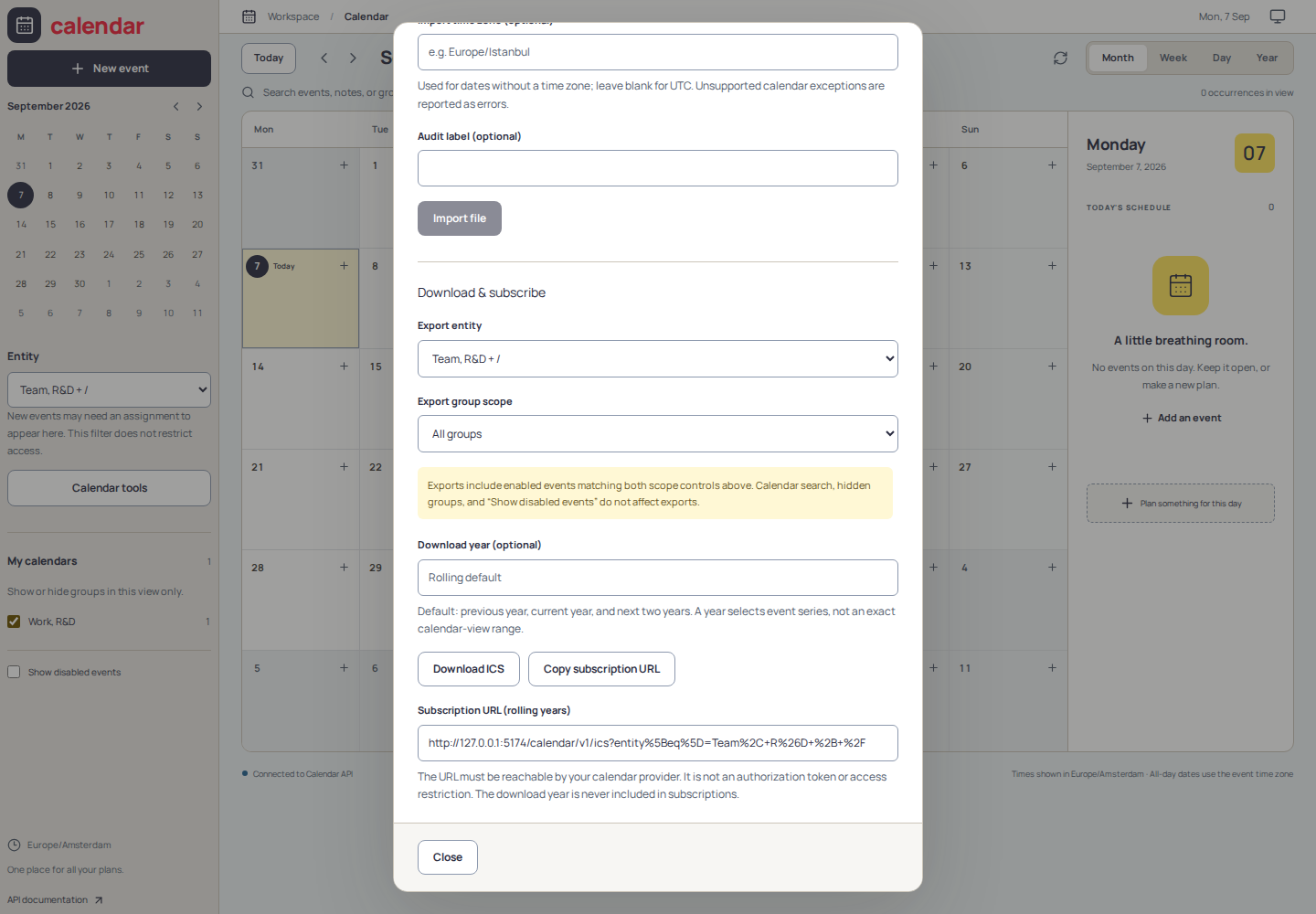
Choose an .ics file up to 9 MiB, optionally set an import group, time zone, and audit label, then choose Import file. Imports do not create entity assignments. Use the Assignments tab afterward if the imported events belong in an entity calendar.
Supported recurrence data includes EXDATE, RDATE (including PERIOD start/end or start/duration), and same-UID detached overrides and cancellations. The master and its exceptions are stored together. Unsupported recurrence/timezone constructs are rejected rather than treated as full RFC support.
Download a Calendar
Choose Export entity and Export group scope, then Download ICS. Only enabled events matching both scope controls are exported. Choosing all entities means all events, including events without assignments; choosing all groups applies no group restriction.
The export controls are independent of calendar search, hidden groups, and Show disabled events. Review the scope before sharing: a filtered screen is not a preview of the download's contents.
The optional Download year selects event series, not an exact clipping of the visible calendar range. Without a year, the default window is the previous year, current year, and next two years. An ICS download is a snapshot, not an automatically updating subscription.
Ordinary recurring series retain their rules and exceptions; special FUNC and multiple-rule sets may be exported as standalone instances for the selected years. Timezone definitions are explicit: generated IANA definitions cover years 1..9999 and can add hundreds of KiB per DST zone. Custom definitions are retained. Conflicting definitions for one TZID, including custom/IANA scope collisions, cause export to fail instead of silently reinterpreting events.
Subscribe From Another Calendar
Choose the export scope, then Copy subscription URL and add it as a calendar subscription in your calendar client. If clipboard access is unavailable, select and copy the displayed URL manually. Subscriptions use the same entity/group scope but never include the download year, retaining the rolling default window.
The URL must be reachable by the subscribing calendar provider. A localhost URL will not work for a remote provider. Refresh timing depends on that provider; updates may not appear immediately.
Deployment Security
The UI and API provide no built-in authentication. Protect both at deployment with appropriate network restrictions or an authentication layer. The optional Updated by / audit label is sent as X-User; it is caller-supplied metadata, not a verified identity, login, or authorization check.
Entity filters and subscription URLs do not restrict access. A subscription URL is not an authorization token. When protecting the service, also plan how your calendar provider will reach and authenticate to the feed without exposing management endpoints or other calendars.